User guide
Guide to connecting your website and LINE OA to the Lead inbox
The same guide that's in the app, readable without logging in, with search and a table of contents.
1How sales channels help your business
Use this when you have just started with the "Sales channels" menu and want the big picture first.
Customers reach you in different ways. Some fill in a form on your website, some order online, some chat with you on LINE. Once your channels are connected, every customer's name, phone number and message arrives in one place: the Lead inbox. Your sales team no longer copies details out of chats or emails, and you can see which channel and which sign each customer came from.
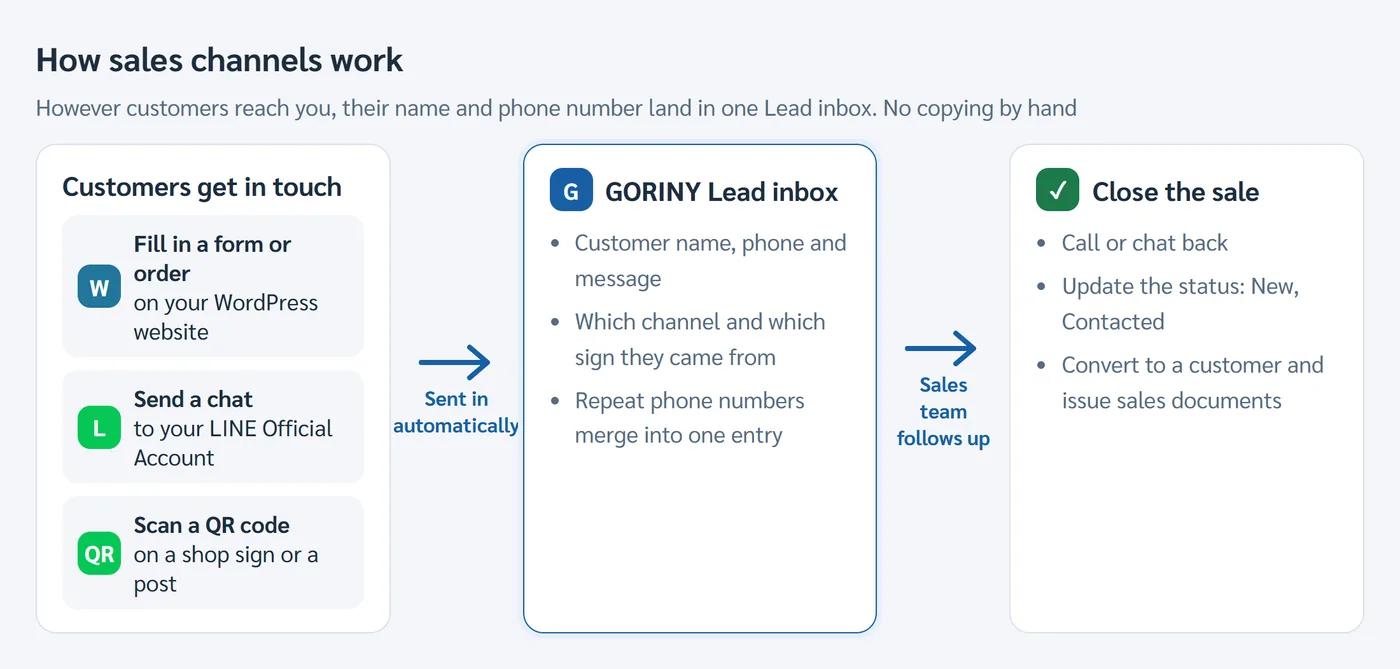
In this guide, a lead means someone who has shown interest but is not yet a customer in the system.
All the screens you need are in the Sales channels menu:
| Menu item | What it is for |
|---|---|
| Channel settings | Connect your website or LINE, and download the WordPress plugin |
| Lead inbox | See everyone who is interested, call them back, change their status and convert them to customers |
| Codes & QR | Make QR codes for signs or posts, so you know which sign a customer came from |
| Quarantine | Entries the system did not accept as leads, with the reason |
| User guide | This guide, always available inside the app |
A screen title can be a little longer than its menu item. For example the Lead inbox screen is titled "Incoming lead inbox". It is the same screen. The Ad spend (Ad-to-GP) menu shows how much profit each ad campaign brings back. It is covered in a separate guide.
Who can change settings: connecting and changing channels, and creating QR codes, is done by the business owner account. Other staff can see all the information but will not see the settings buttons.
Connect your first channelUse when your Lead inbox is still empty and you want to connect your first channel.
Open the Sales channels menu and choose Channel settings. The first time, the screen is empty, with a Connect new channel button at the top right.
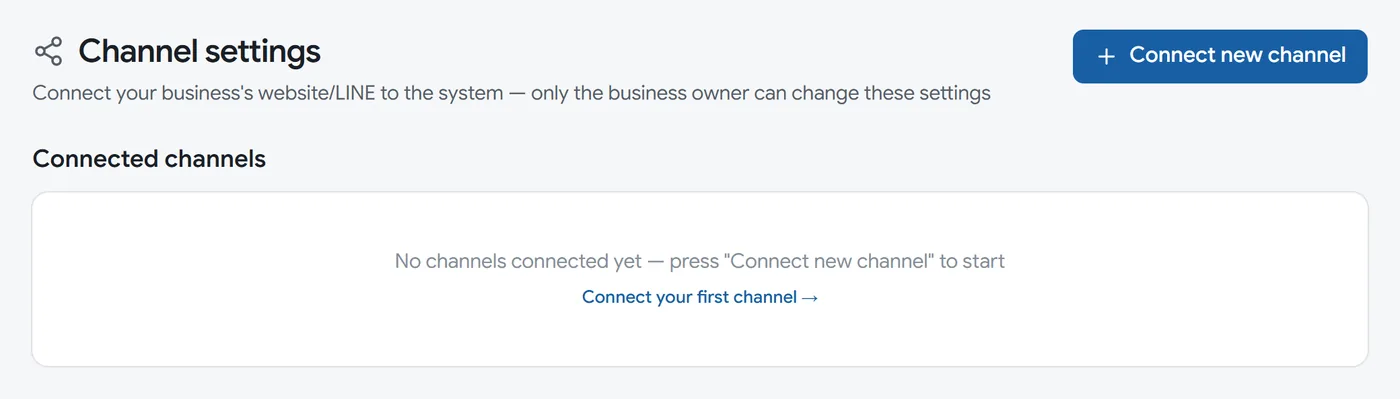
Pick what your business has. If you have both, connect both, as two separate channels.
- You have a WordPress website with a contact form or online orders: go to Connect a WordPress website
- You have a LINE Official Account: go to Connect LINE OA
2Connect a WordPress website
Use this when you want people who fill in a form or order on your WordPress website to arrive in GORINY as leads automatically.
There are 4 short steps:
- Create the channel in GORINY (topic 2.1)
- Copy the signing key and keep it safe (topic 2.2)
- Download the plugin and install it on your website (topic 2.4)
- Paste 2 values into the plugin and send a test (topic 2.3)
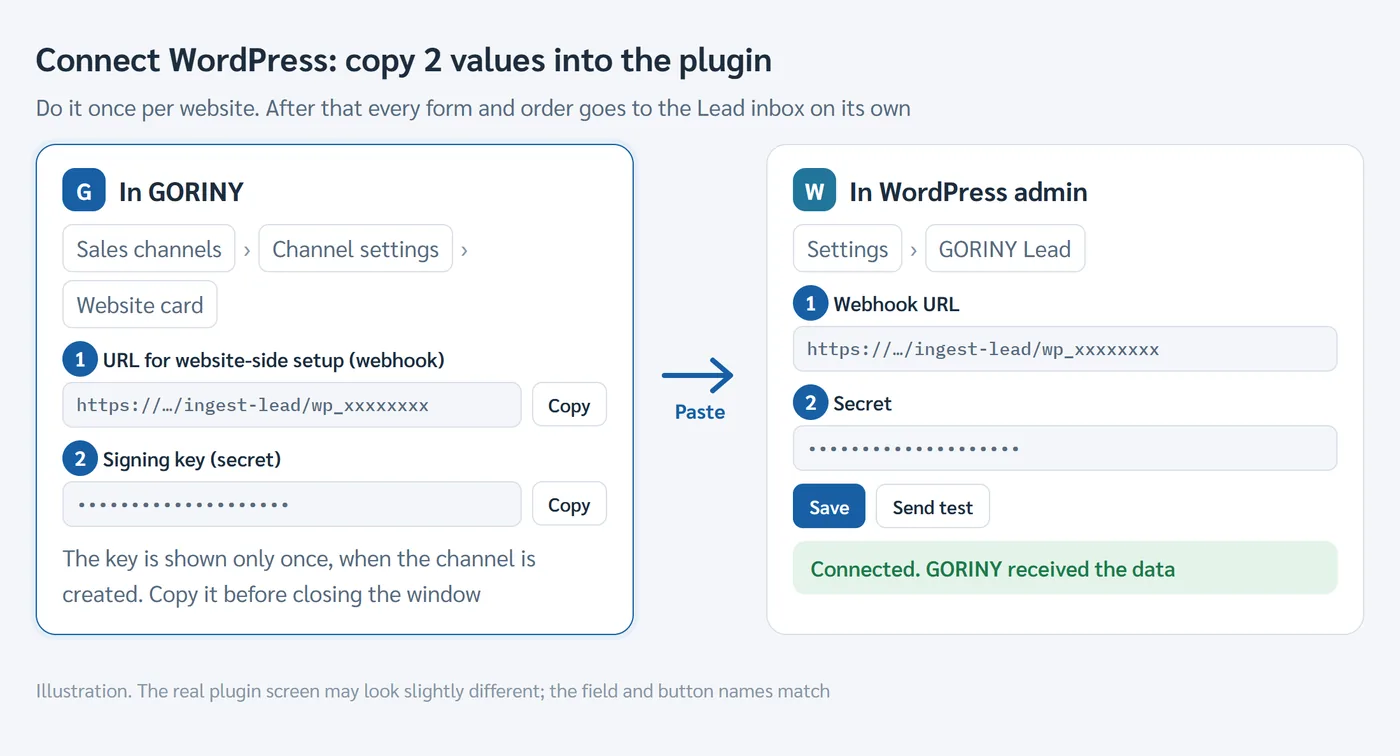
Language note: the WordPress plugin and its install guide (README-install-TH.md) are in Thai. The field names Webhook URL and Secret are in English, and this guide gives the meaning of every plugin message, so you can follow along without reading Thai.
2.1 Create a website channel in GORINYUse when you have not yet created a "WordPress site" channel for this website (business owner only).
- Open the Sales channels menu and choose Channel settings
- Press Connect new channel at the top right
- In the window that opens, fill in 3 fields:
- Channel type: choose WordPress site
- Channel name: something easy to recognise, for example
Main website - Default branch (optional): the branch that looks after customers from this website. You can change it later
- Press Create channel
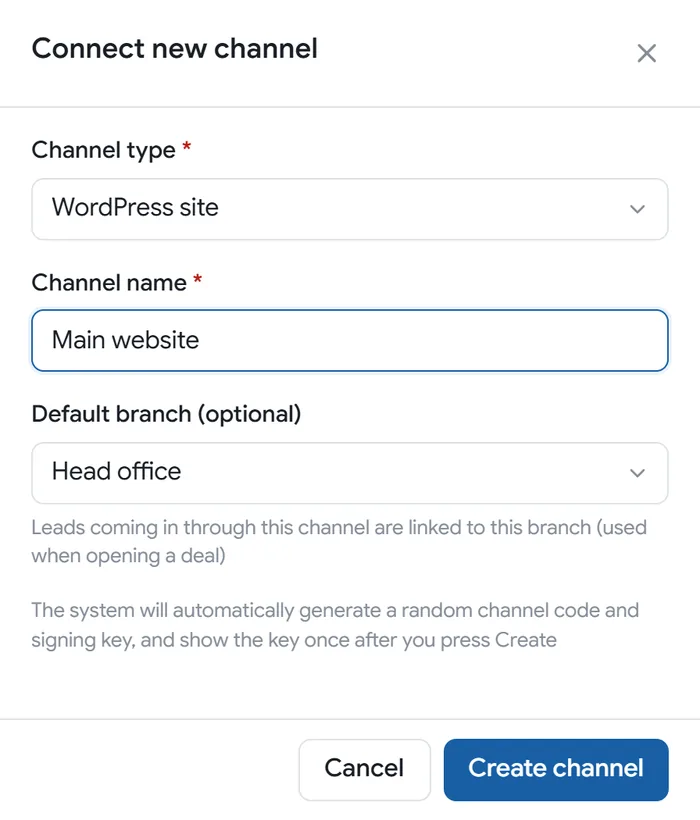
A window then shows the channel code and the signing key. Read the next topic before you close it.
2.2 The signing key (secret) is shown only onceUse when you see the signing key window, after creating a channel or after pressing "Issue new secret".
The signing key is a secret code the plugin uses to prove that data really comes from your website. For security, the system shows it only once.
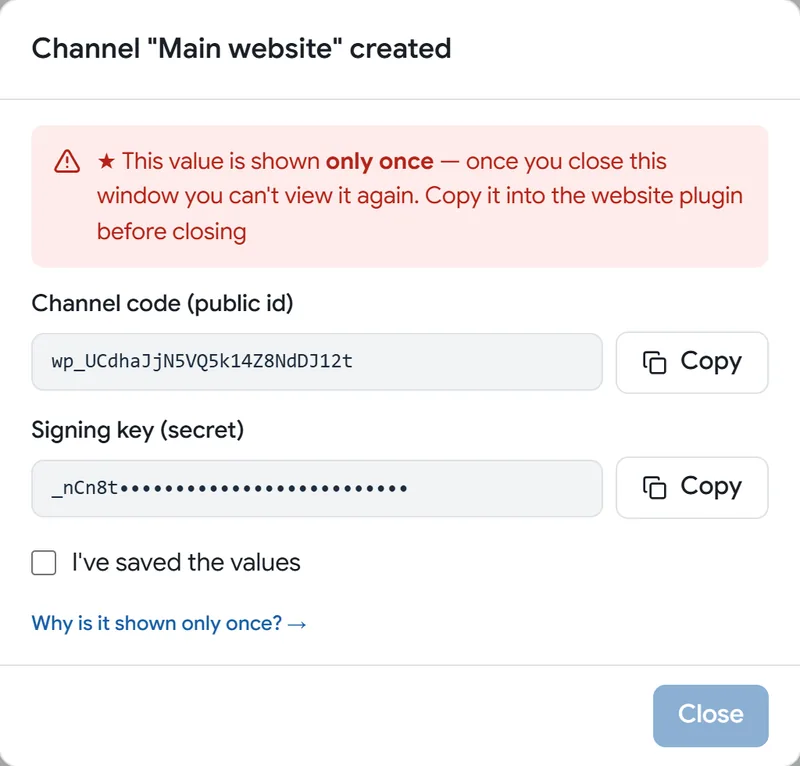
- Press Copy next to Signing key (secret)
- Paste it into the plugin on your website (topic 2.3), or write it down somewhere safe first
- Tick I've saved the values. Only then can you press Close
Take care:
- Do not refresh the page, close the tab or go back before you have copied it. The value disappears and cannot be shown again
- Do not send the key by chat or email where others can see it. If you must send it to your web developer, delete the message afterwards
- If you lose it, no problem: press Issue new secret on the channel card (topic 4.4)
2.3 Paste the values into the plugin and send a testUse when you have the signing key and the plugin is installed on your website (no plugin yet? See [topic 2.4](#get-plugin)).
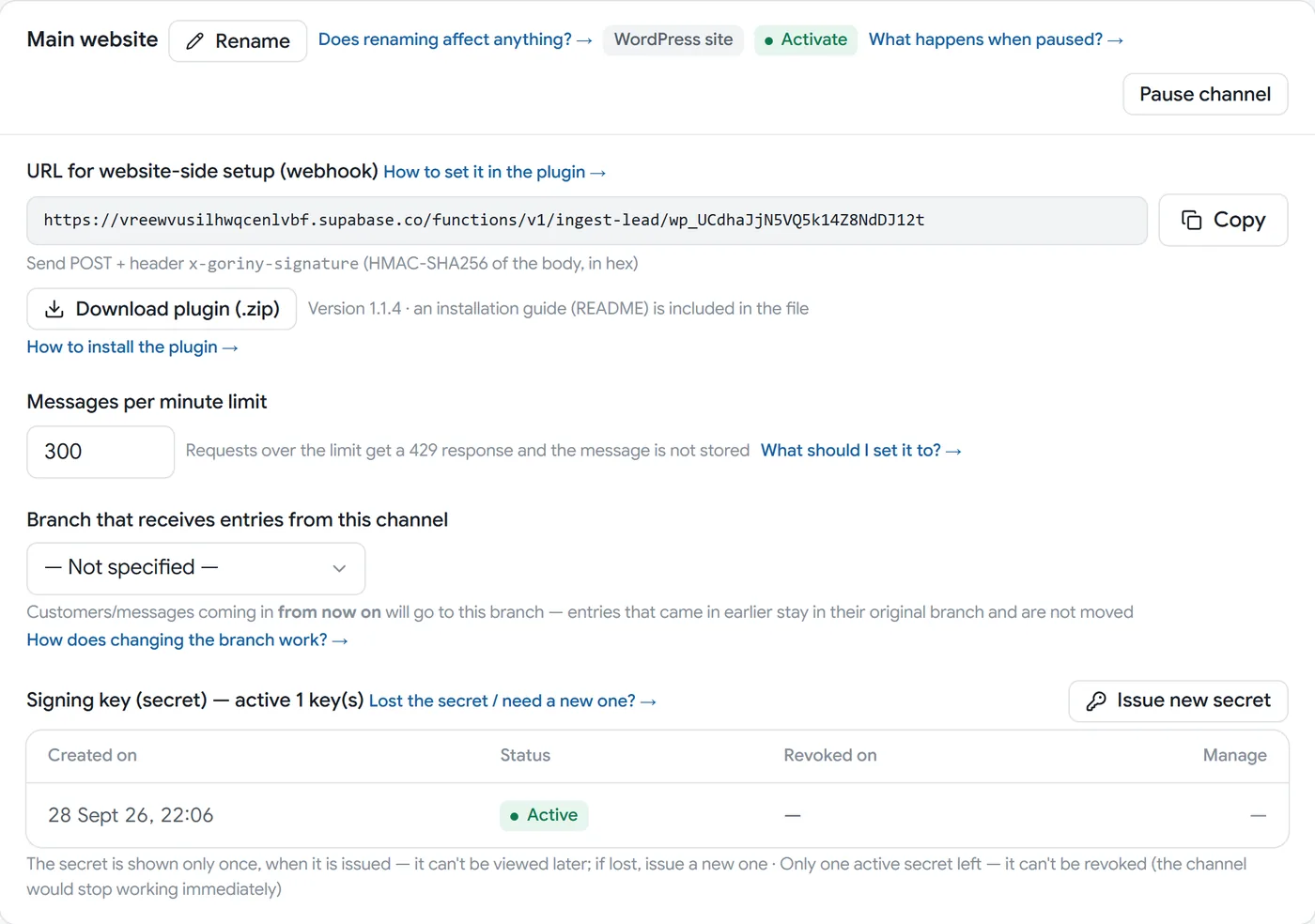
After you close the key window, Channel settings shows a card for this website. At the top is URL for website-side setup (webhook).

- Press Copy next to the URL
- In your WordPress admin, go to Settings and choose GORINY Lead
- Paste the URL into Webhook URL and the signing key into Secret, then press the save button (บันทึก)
- Press the test button (ส่งทดสอบ, "send test") on the same page and enter your own phone number
If the connection works, the plugin shows a green box starting "เชื่อมต่อสำเร็จ" (connected, GORINY received the data), and an entry named "ทดสอบระบบ (จากหน้าตั้งค่า)" (system test from the settings page) appears in the Lead inbox within a few seconds.
Good to know:
- The test entry is real. If you do not want to keep it, change its status to Junk later
- If the test phone number matches an existing entry, the system merges it into that entry instead of creating a new one
- If you send the same test again, the plugin says the data was already received and not counted twice. That means the connection is fine
- If you see a red or yellow box, look up the meaning in error codes from the test button
- The plugin checks the values for you. If the URL is malformed, it shows a red box and keeps your previous settings
- The small line "Send POST + header" under the URL is for developers. If you use the plugin, you can ignore it
The rest of the website setup is for your web developer, following README-install-TH.md inside the plugin file: setting up the server cron (needed so failed sends are retried automatically), making the phone field required in Contact Form 7, and connecting WooCommerce if you sell online.
2.4 Download the plugin fileUse when you do not have the GORINY Lead Connector plugin yet, or want to check that your website has the latest version.
- Create the website channel first (topic 2.1). The download button is on that channel's card
- On the website channel card, press Download plugin (.zip). The latest version number is shown next to it
- In your WordPress admin, go to Plugins, press Add New, then Upload Plugin, choose the .zip file and activate it
Good to know:
- The file is named
goriny-lead-connector-<version>.zipand includes the install guide README-install-TH.md (in Thai) - To see which version your website has, open WordPress Settings, GORINY Lead. The version is in the page header. You can also check the Plugins page
- If your website's version is older than the number next to the download button, download the new file and upload it over the old one. Your settings are kept
- There is a second plugin called GORINY Mint Ref for a "chat on LINE" button on your website. It is separate from this plugin. See topic 3.6
3Connect LINE OA
Use this when you want people who chat with your LINE Official Account to arrive in GORINY as leads automatically.
You need: a LINE Official Account with Messaging API turned on, and access to the LINE Developers Console
Connecting LINE means swapping two values. A: take the Channel secret from LINE and put it into GORINY. B: take the Webhook URL from GORINY and put it into LINE.
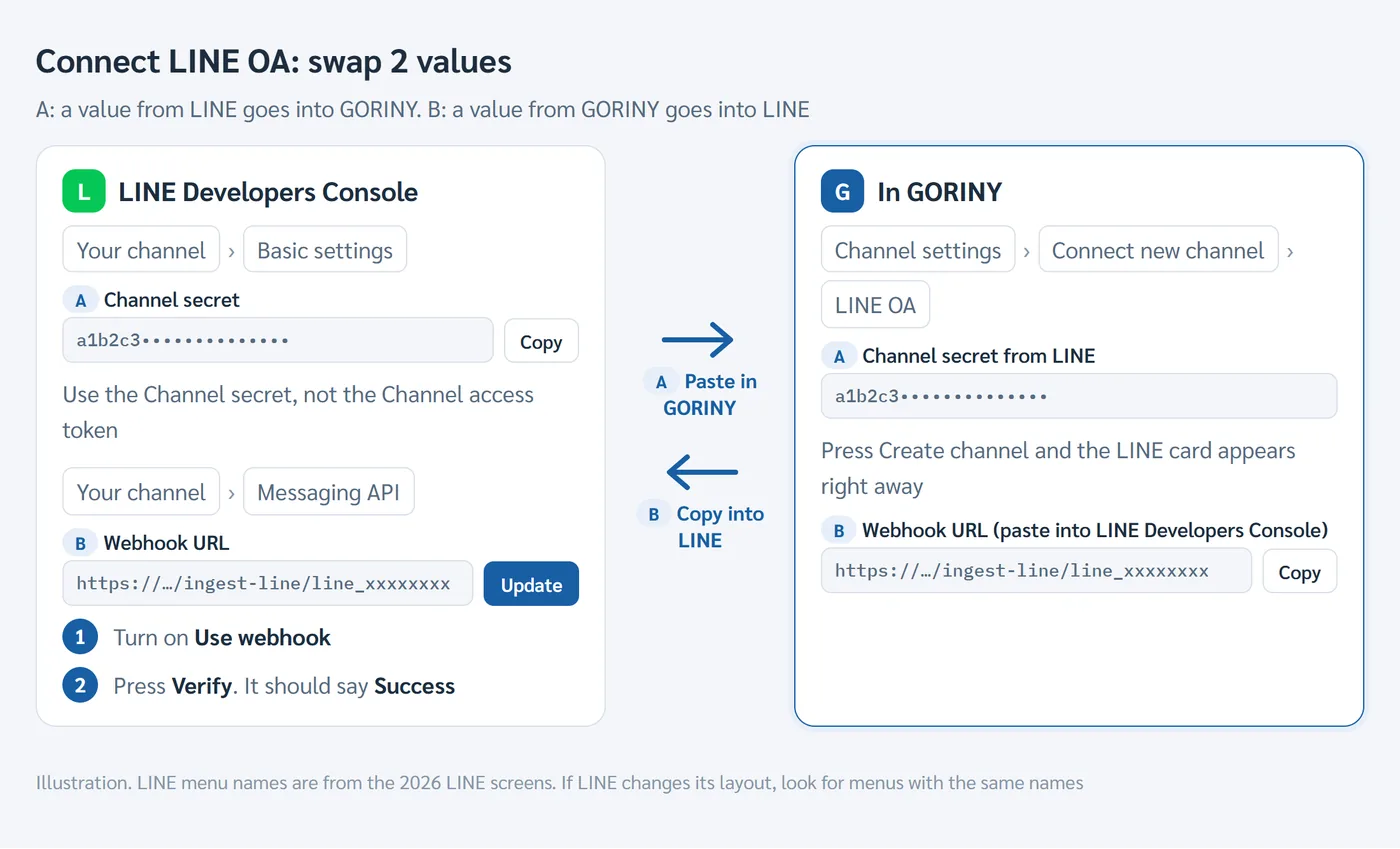
GORINY only receives messages. It never replies on your behalf, so it does not ask for or store a Channel access token.
3.1 Create a LINE channel in GORINYUse when you have not yet created a "LINE OA" channel for this account (business owner only).
- Open the LINE Developers Console, choose your channel, go to the Basic settings tab and copy the Channel secret
- It must be the Channel secret, not the Channel access token
- In GORINY, open Sales channels, choose Channel settings and press Connect new channel
- Fill in:
- Channel type: choose LINE OA
- Channel name: for example
Shop LINE - Channel secret from LINE: paste the value from step 1
- Default branch (optional): you can change it later
- Press Create channel
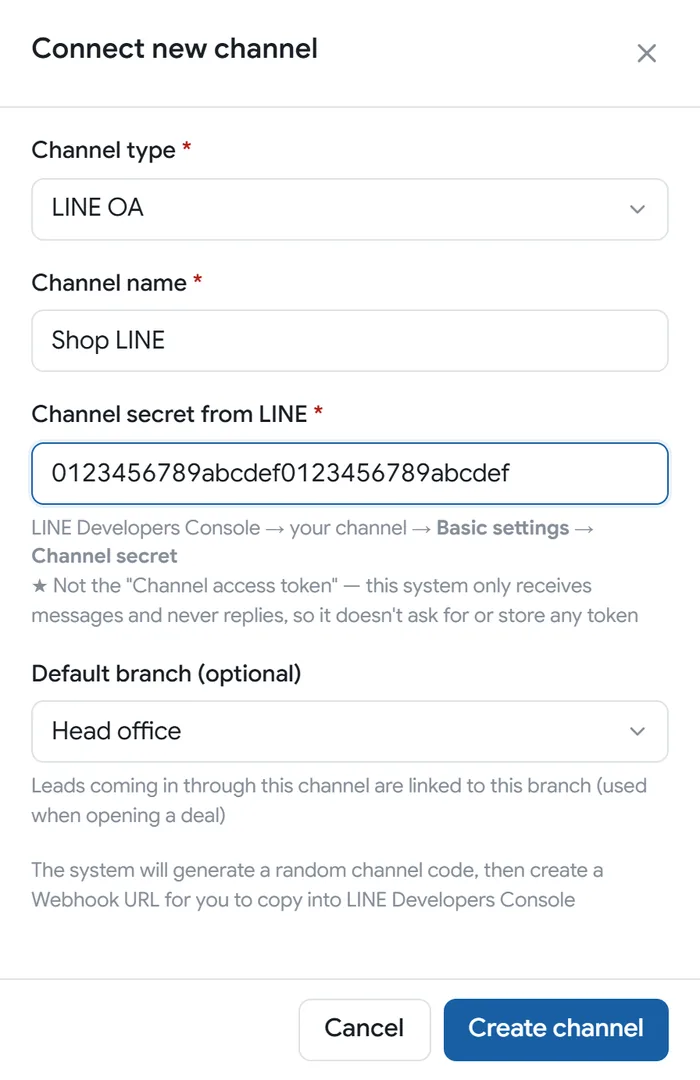
The LINE channel card appears right away. There is no key window for LINE channels, because you already hold the original value in the LINE Developers Console. Next, set up the webhook on the LINE side.
3.2 Set up the webhook in LINEUse when you have created the LINE channel in GORINY and need to tell LINE where to send messages.
At the top of the LINE channel card is Webhook URL (paste into LINE Developers Console).

- Press Copy next to the Webhook URL
- In the LINE Developers Console, choose your channel and go to the Messaging API tab
- Paste the value into Webhook URL and press Update
- Turn on Use webhook
- Press Verify. It should say Success
Ask someone to send your LINE account a chat message. It will appear in the Lead inbox. Leads from LINE usually show No name. That is normal: LINE does not send the person's name. You can still reply to them in the chat.
3.3 Paste a new Channel secret after reissuing it in LINEUse when you reissue the Channel secret in the LINE Developers Console (for example, if you think the old one leaked). You must paste the new value into GORINY too, or messages will stop coming in.
- On Channel settings, on the LINE channel card, press Paste Channel secret from LINE
- Paste the new value from the LINE Developers Console (Basic settings, Channel secret) and press Save
- The old value keeps working for a while, so messages already on their way are not lost. Once everything is running normally, come back and press Revoke on the old row in the table (check the date in the Created on column)
3.4 Set your LINE OA id for QR codesUse when you are about to make your first QR code. Set it once and it works for every QR code.
- Open Sales channels and choose Codes & QR
- If you have not connected LINE yet, a yellow bar says there is no LINE channel. Create a LINE channel first, because every QR code takes customers to your LINE
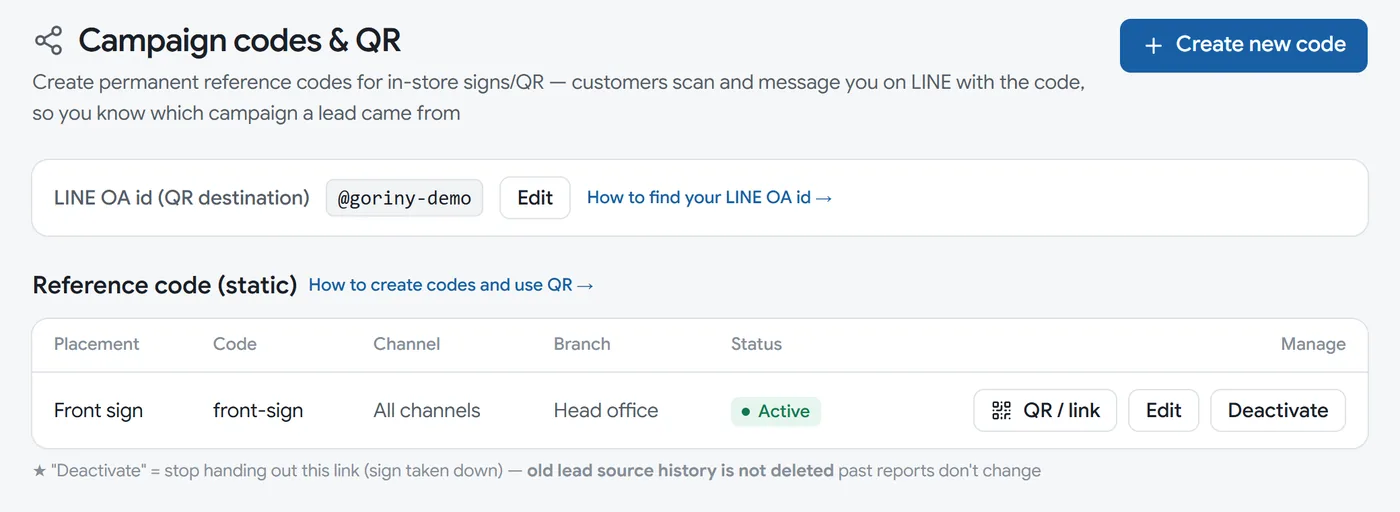
- On the LINE OA id (QR destination) row, press the set button
- Enter your LINE OA id, starting with
@, for example@goriny-demo(you can find it in the LINE Developers Console, Basic settings), then press Save

You will see "LINE OA id saved". You can change it later with the Edit button on the same row.
3.5 Campaign codes and QR: know which sign a customer came fromUse when you want to put a QR code on a shop sign or in a post, and have the system tell you where each customer scanned it (you need to [set your LINE OA id](#line-oa-id) first).
When a customer scans the QR code, your LINE opens with a message ready in the chat box. When they press send, the system records which sign they came from.
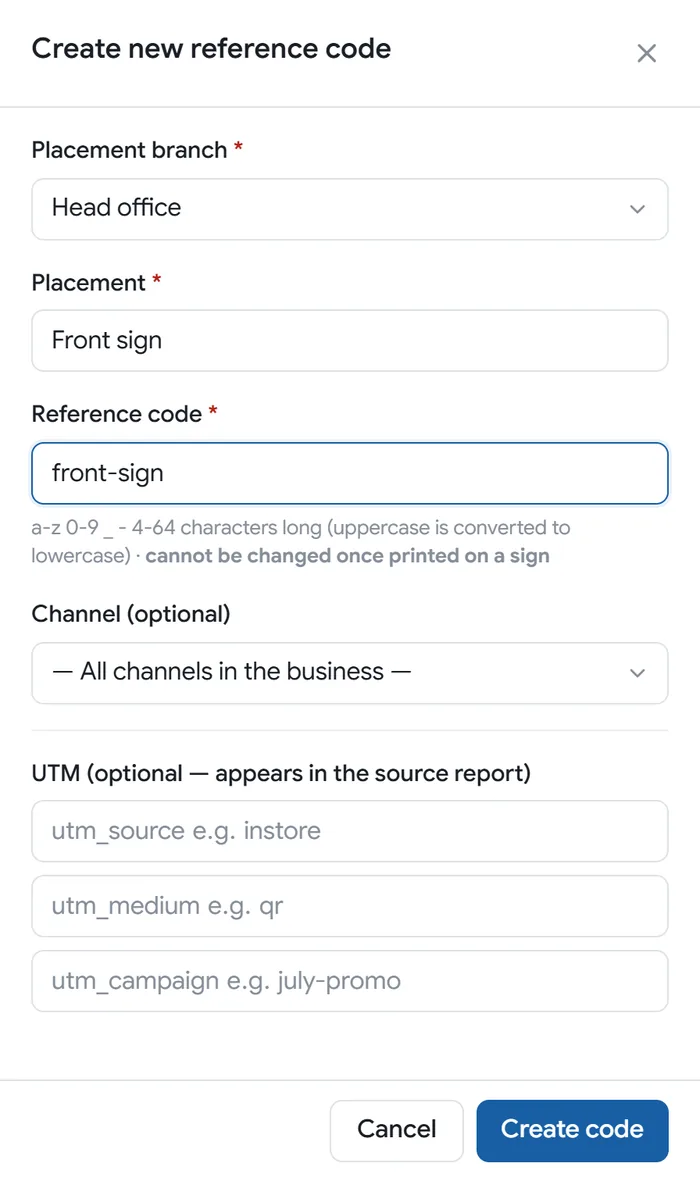
- Open Sales channels, choose Codes & QR and press Create new code
- Fill in:
- Placement branch
- Placement: for example
Front sign - Reference code: for example
front-sign. Use lowercase letters, numbers and hyphens. It cannot be changed once printed on a sign, so choose it carefully - Channel and UTM are optional
- Press Create code
- On the code's row in the table, press QR / link
- Press Download PNG (or Download SVG for a print shop) and use it on your sign
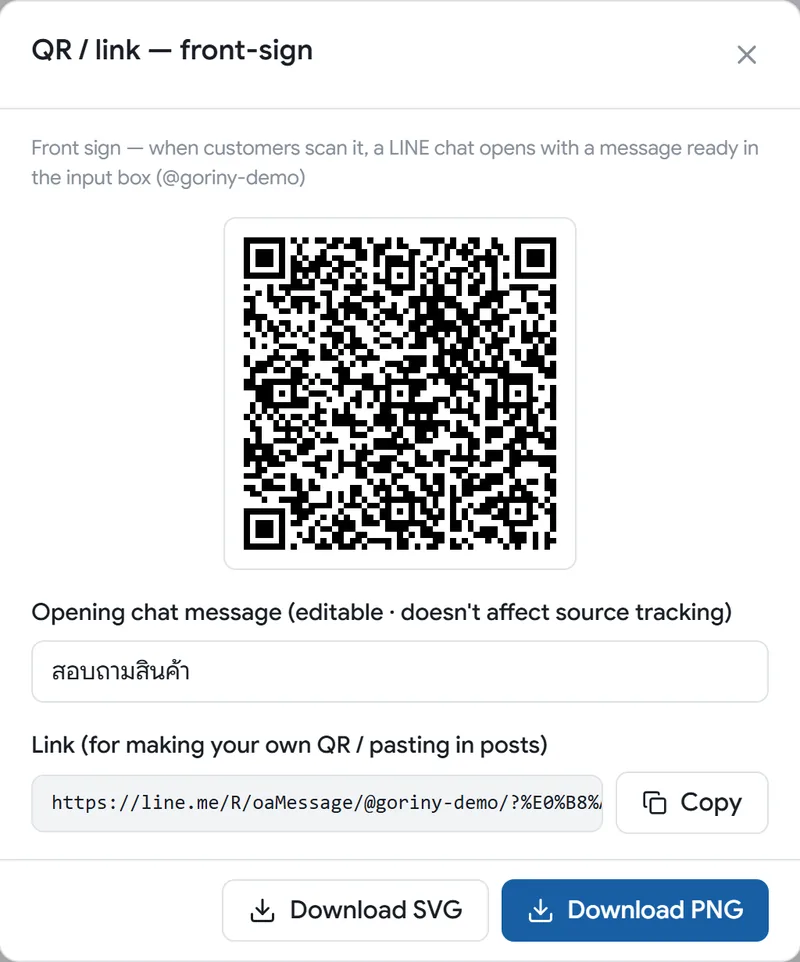
The opening chat message is filled in with a Thai phrase meaning "product enquiry", because it is the message your customers send and most customers in Thailand chat in Thai. You can change it in the window. Changing it does not affect source tracking.
In the Lead inbox, the Source column shows the placement name, for example Front sign. When you stop using a sign, press Deactivate on its row. Past customers keep their source history and earlier reports do not change.
3.6 A "chat on LINE" button on your website, with a reference code (Mint Ref plugin)Use when you have a WordPress website and want its "chat on LINE" button to tell you which page or ad the customer came from.
It works like campaign codes and QR, except the customer presses a button on your website instead of scanning a sign. When they press it, LINE opens with a message containing a reference code [ref:...] ready in the chat box.
You need first: a WordPress site channel (topic 2.1), a LINE OA channel (topic 3.1) and your LINE OA id set
Download the plugin: download goriny-mint-ref (.zip) (you need to be signed in)
In short, ask your web developer to follow README-install-TH.md (in Thai) inside the zip file:
- Upload the zip file to WordPress and activate it (this plugin has no settings page, which is normal)
- Add 3 values to
wp-config.php. All of them come from the website channel's Webhook URL and signing key (README section 2 explains how) - Add
class="goriny-line-cta"to the "chat on LINE" buttons on your pages, as shown in the table in README section 3. No extra code is needed - Test: open a page with
?utm_source=testadded to the address, press the button, and LINE should open with[ref:...]in the chat box. Press send and the entry appears in the Lead inbox with its source
If a reference code cannot be created at some moment, the button still takes the customer to LINE as usual, just without the code. You never lose the chance to hear from them.
4Adjust a channel
Use this when a channel is connected and you want to change how it works: the receiving branch, the message limit, pausing, keys or the name.
Everything is on the channel's card in Channel settings, and needs the business owner. Other staff can see all the values but cannot change them.
4.1 Branch that receives entriesUse when you want to change which branch customers from this channel go to.
- On the channel card, under Branch that receives entries from this channel, choose a branch (choose Not specified if you do not want to link a branch)
- Press the Save button that appears next to it
You will see "Branch saved". The change applies only to entries that arrive from now on. Earlier entries stay with their original branch.
4.2 Messages per minute limitUse when you want to change the maximum number of messages a channel accepts per minute, for example before a big campaign or when you get spam.
- On the channel card, under Messages per minute limit, change the number (new channels start at 300)
- Press the Save button next to it
Messages over the limit are refused with code 429. On the website side there is nothing to worry about: the plugin queues them and sends them again by itself.
For LINE channels the system counts messages per minute. If the limit is hit continuously for a long time, LINE stops retrying and those messages are lost, so set the LINE limit comfortably high.
4.3 Pause a channelUse when you want to stop receiving from a channel for a while, for example during website maintenance, without deleting its settings.
- Press Pause channel at the top right of the card. The status badge changes to Paused
- While paused, incoming entries are not lost. The system keeps them in Quarantine with the reason "Channel paused", but does not count them as leads
- Press Activate (the same button) to start receiving again
Good to know: entries that went to Quarantine while the channel was paused are not turned back into leads when you reactivate it. If one of them is an important customer, look up their name and number in Quarantine and contact them.
4.4 Issue a new signing key and revoke the old oneUse when the signing key is lost, might have leaked, or is due for your regular security change.
For a WordPress site channel:
- On the channel card, under Signing key (secret), press Issue new secret
- The new key is shown only once. Follow topic 2.2, then paste it into the plugin (WordPress Settings, GORINY Lead page, Secret field, then save)
- The Secret field in the plugin is empty every time you open the page, for security. Leaving it empty keeps the current key. Only fill it in when you are changing it
- The old key keeps working during the changeover. Once the new key is in your website, come back and press Revoke on the old key's row in the table
For a LINE OA channel: there is no issue button in GORINY. Reissue the secret in the LINE Developers Console and paste it in as in topic 3.3
The system does not let you revoke the last remaining key, because the channel would stop receiving at once. With only one key left, there is no Revoke button.
4.5 Rename a channelUse when the channel name no longer fits, for example after renaming your website or campaign.
- At the top of the channel card, press Rename next to the name
- Type the new name and press Save (or Cancel if you change your mind)
Renaming only changes the label. It does not affect the URL, keys, branch, limit or any customer history.
5Incoming lead inbox
Use this when you want to see and manage everyone who has contacted you through any channel (Sales channels menu, Lead inbox).
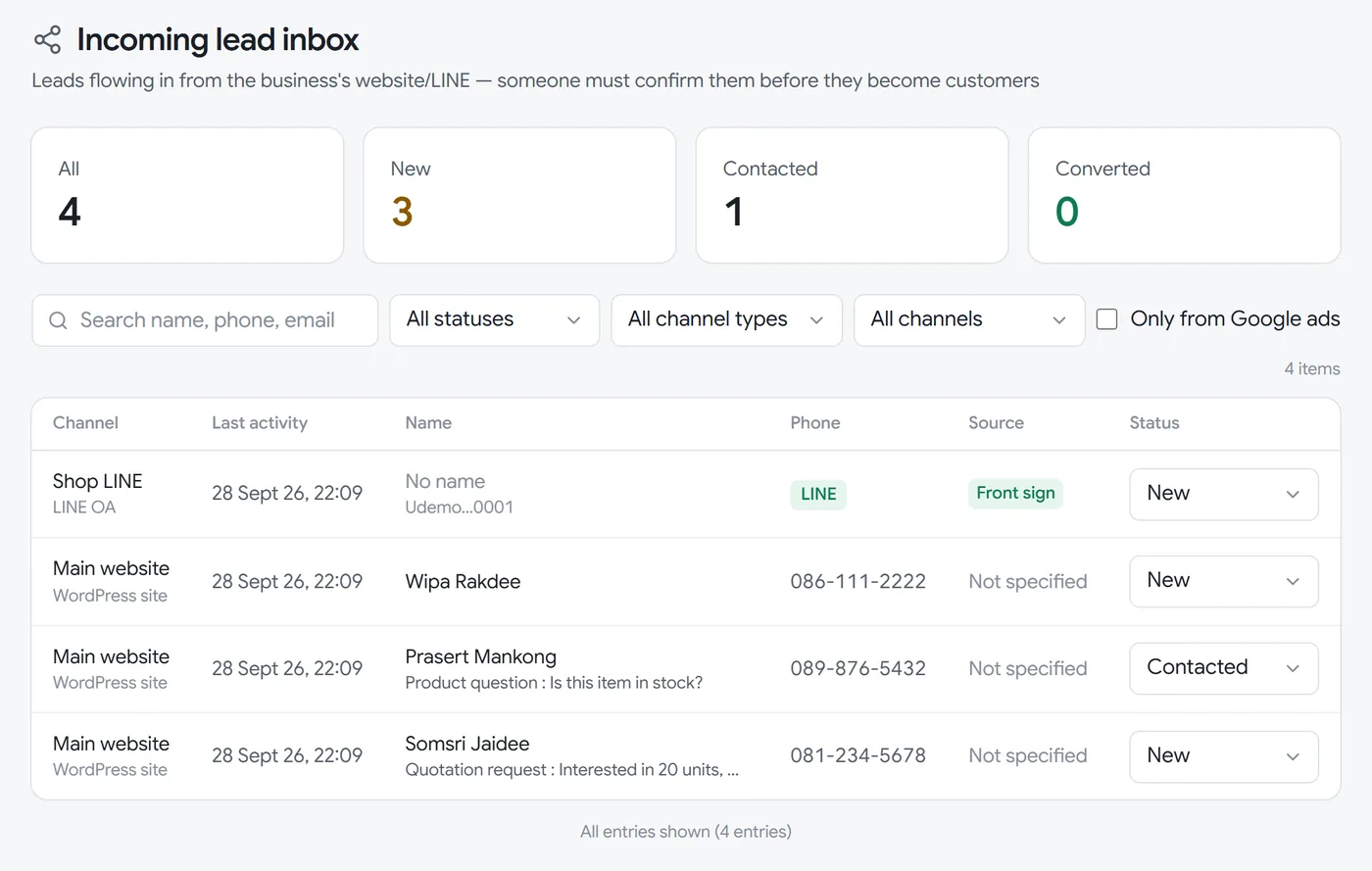
On this screen:
- Numbers at the top show the total, New, Contacted and Converted
- Search and filters find leads by name, phone or email, and filter by status, channel type or a single channel
- The table has one row per lead: channel, last activity, name, the message they sent, phone number and source (the sign or campaign, or Not specified)
Good to know:
- Leads from LINE usually show No name, because LINE does not send the person's name. The phone column shows a LINE badge instead. Reply to them in the chat
- If the phone column shows a dash, the entry has neither a phone number nor a LINE account, so there is no way to contact them
- If the inbox is empty and says no leads have come in yet, check your channel connection as in connect your first channel
5.1 Lead statusUse when you want to know what each status means and how to change it.
| Status | Meaning |
|---|---|
| New | Just arrived, nobody has contacted them yet |
| Contacted | Your sales team has contacted them and is waiting for an answer |
| Converted | Linked to a customer in the system. This only happens by converting to a customer |
| Junk | Not a real lead, for example spam, a test entry or the wrong person |
Change the status from the dropdown in the Status column of that row. Converted is the final status and cannot be changed.
5.2 Convert to customerUse when you have talked to a lead and want to keep them as a customer in the system, so you can issue quotations or sales documents.
- On the lead's row, press the three dots at the end of the row (the Actions button) and choose Convert to customer
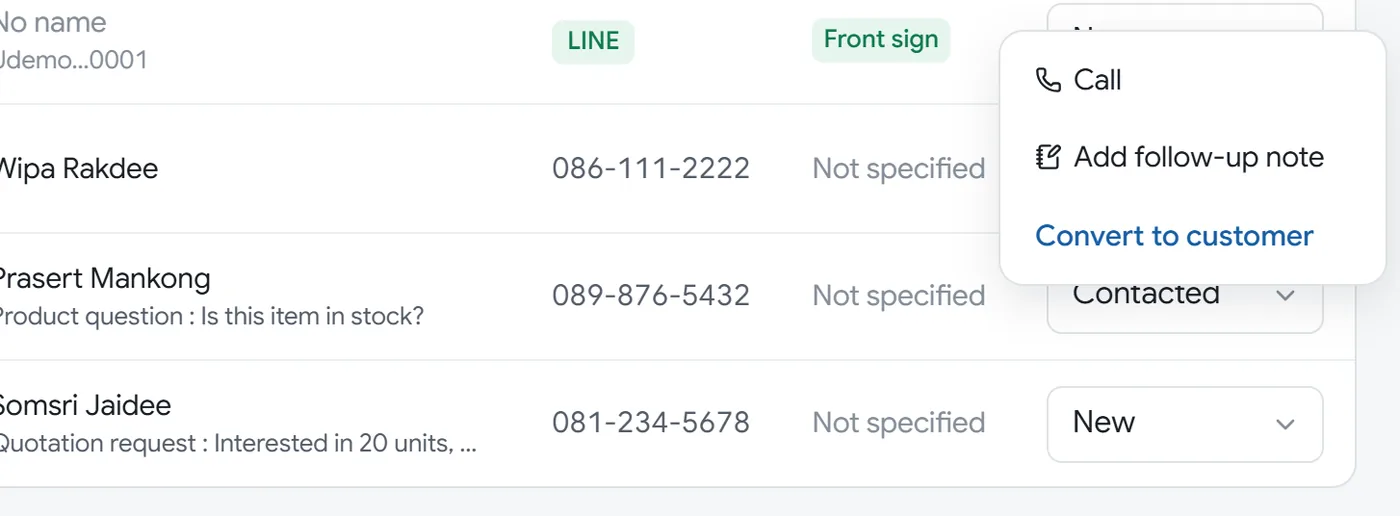
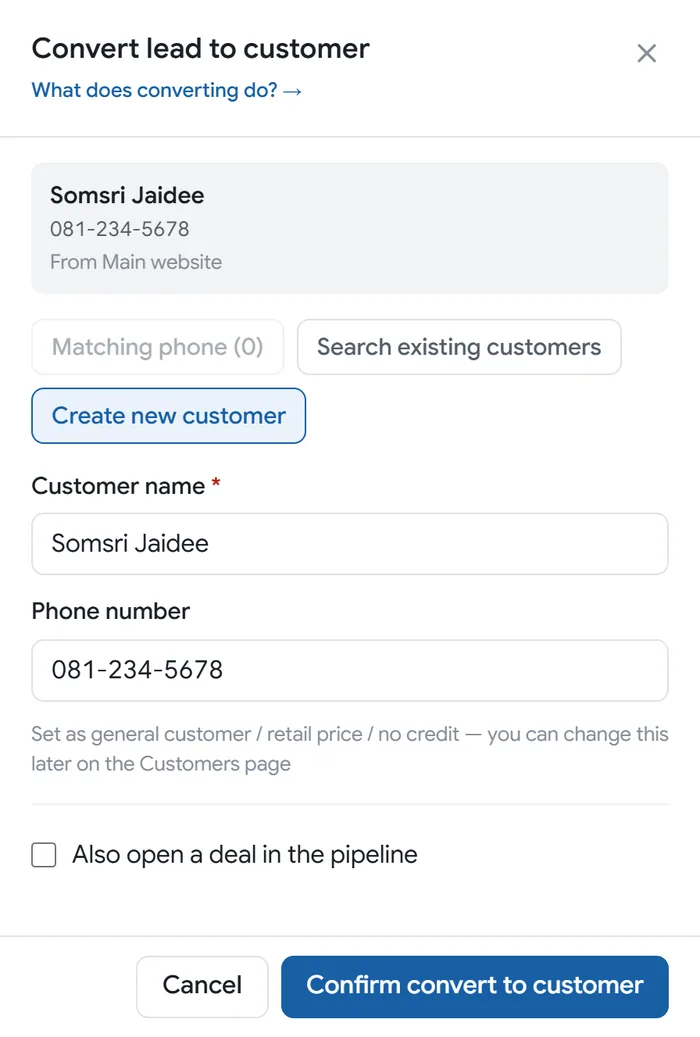
- The window gives you 3 choices. The system never links a customer without asking you:
- Matching phone: existing customers whose phone number matches this lead (if there are none, this button is disabled)
- Search existing customers: search by name or phone yourself. Useful for LINE leads without a phone number
- Create new customer: create one from the name and phone number you have. You can edit them before confirming
- To open a deal in the sales pipeline at the same time, tick Also open a deal in the pipeline and enter a deal name and expected value
- Press Confirm convert to customer
After converting, the status changes to Converted and the three-dot menu offers a link to view the customer instead. A lead links to exactly one customer and this cannot be undone. If one phone number belongs to several customers (for example an office number), the system always asks you to choose.
6Quarantine: entries the system did not accept
Use this when you wonder why someone filled in a form but does not appear in the Lead inbox, or when your website reports that an entry was refused (Sales channels menu, Quarantine).
This screen keeps entries that arrived but were not accepted as leads, as evidence, with the reason in the Rejection reason column.
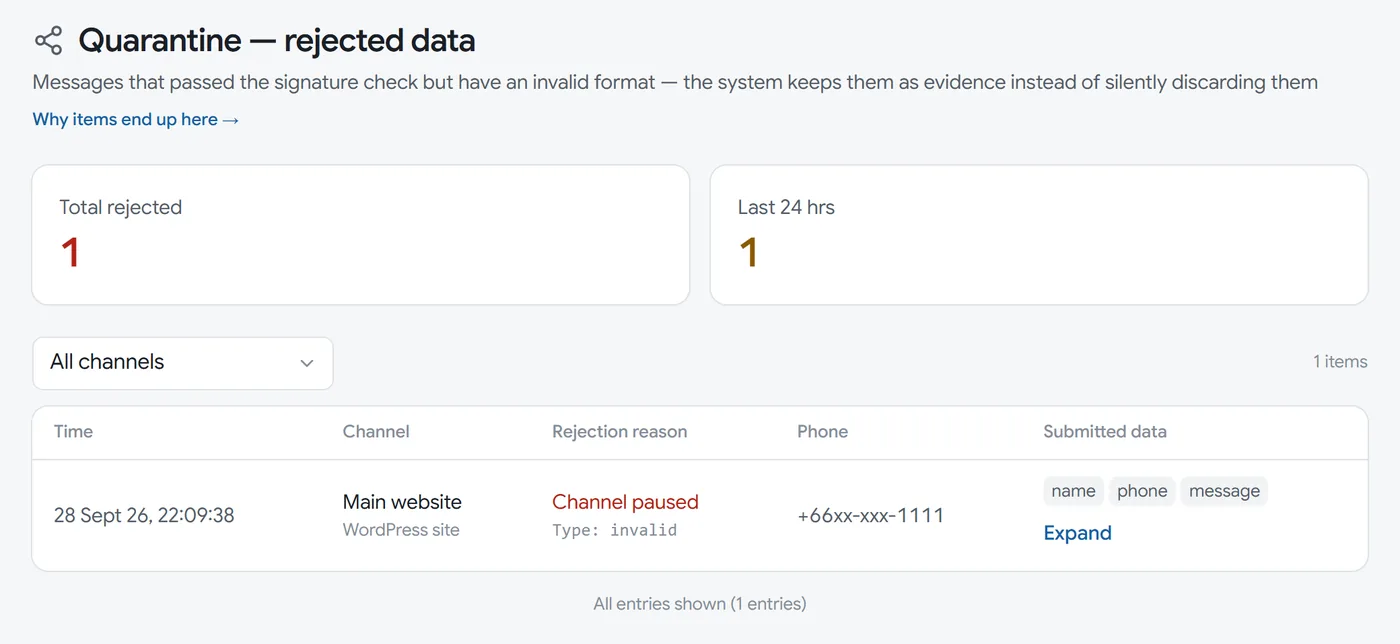
Common reasons:
- Channel paused: the channel was paused. The system kept the entry but did not count it as a lead
- No phone number or Phone number is not a Thai number: leads are built around the phone number, so an entry without a usable number lands here with everything that was filled in. Contact the person using the other details you see, such as the email, and make the phone field required on your form
- The data could not be read, or required details were missing, such as the entry reference. This usually happens with software that sends data on its own instead of using the plugin
Here you can see when it arrived, from which channel and why, and press Expand to see everything that was sent (phone numbers are partly hidden for security).
Good to know:
- If you use the GORINY Lead Connector plugin as described and have not paused a channel, this screen is usually empty and says there is no rejected data
- This screen is view only. Entries cannot be turned back into leads. If one is an important customer, contact them using the details shown
- Entries with a signing key that does not match (wrong key, or a URL pointing at the wrong channel) are refused at the door and never appear here. If your website says sending failed but this screen is empty, check the key and URL as in troubleshooting
7Troubleshooting
Use this when entries are not arriving, or the plugin's test button shows a red or yellow box.
A form was filled in or a chat was sent, but no lead arrived
Check in this order:
- On Channel settings, is the channel's status badge Active? If it says Paused, press Activate (topic 4.3)
- Look at Quarantine. If the entry is there, read the reason and fix it (topic 6)
- On the website: open WordPress Settings, GORINY Lead, and look for a red warning box and the history table, then compare with the error code table
- The phone field in your form must be required. The plugin does not send entries without a phone number
- On LINE: in the LINE Developers Console, check that Use webhook is still on and that the Webhook URL matches the value on the card in GORINY (topic 3.2)
What the test button's messages mean
The current plugin shows its result as a coloured box with an explanation in Thai. If yours does not look like this, it is an old version: download the new one. This table also helps when you need to report a problem to your web developer or the GORINY team.
| What you see | What it means | What to do |
|---|---|---|
| Green, starting "เชื่อมต่อสำเร็จ" (connected) | Everything is correct | Check the entry in the Lead inbox. If the test phone matches an existing entry, it is merged into that entry |
| Red 401, "กุญแจลายเซ็น (Secret) ไม่ตรง" (signing key does not match) | The key in the plugin does not match GORINY, or the URL points at the wrong channel | Paste the key again exactly. If it is lost, issue a new one, and compare the URL with the channel card |
| Red 400, "ปลายทางไม่รับข้อมูล" (the data was refused) | The data was incomplete or in the wrong format. The entry went to Quarantine | Read the reason on the Quarantine screen and fix it at the source |
| Red 404 or 405, "Webhook URL น่าจะไม่ถูกต้อง" (the Webhook URL looks wrong) | The URL has a typo or is incomplete | Copy the whole line again from the channel card (how to copy) |
| Yellow 429, "ส่งถี่เกินเพดาน" (over the limit) | More messages per minute than the channel allows | Wait a moment. The plugin sends again by itself, or you can raise the limit |
| Red, "ข้อมูลใหญ่เกินกำหนด (64KB)" (data too large) | A single entry was unusually large | This usually comes from software that sends data on its own. Send only the details you need |
| Red, "ต่อปลายทางไม่ได้" (cannot connect) or "ปลายทางขัดข้องชั่วคราว (5xx)" (temporary problem) | The website's internet connection had a problem, or the receiving system had a temporary fault | The plugin tries again by itself after 5 minutes, 30 minutes and 2 hours. If it is still stuck after half a day, contact the GORINY team |
I can't change settings because I don't see the buttons
All channel settings (creating channels, keys, branch, limit, QR codes) are done by the business owner account. If you see a message saying you can view channel details but settings require the manage sales channels permission, sign in with the owner account or ask the business owner to make the change.
Appendix: anchor contract
Every anchor below must also exist in omnichannel-setup-TH.md (same ids, never renamed): #what-is-omnichannel #getting-started #connect-wordpress #connect-wordpress-create #secret-one-time #connect-wordpress-plugin #get-plugin #connect-line #connect-line-create #connect-line-webhook #line-secret-paste #line-oa-id #campaign-codes #channel-settings #default-branch #rate-limit #pause-channel #rotate-secret #rename-channel #lead-inbox #lead-status #convert-lead #quarantine #troubleshooting #fix-no-leads #error-codes #fix-no-permission #app-link-map
Still stuck? Ask us
Message us on LINE or send a request. We reply within 1 business day.